
Overview
Ready to add your first product? Just follow these clear steps to go from product setup to save in minutes.
Product Navigation and Category Selection
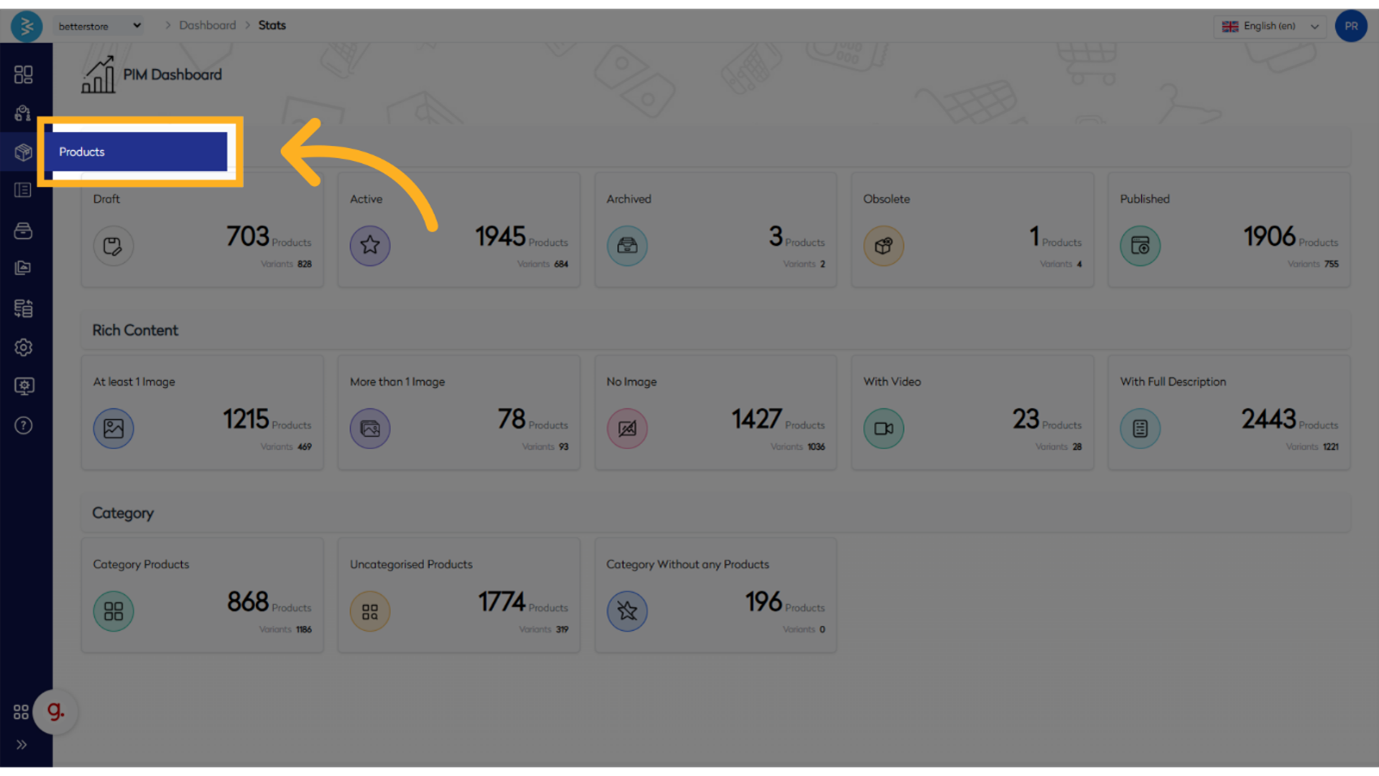
Step 1: Click "Products"
Navigate to the Products section.
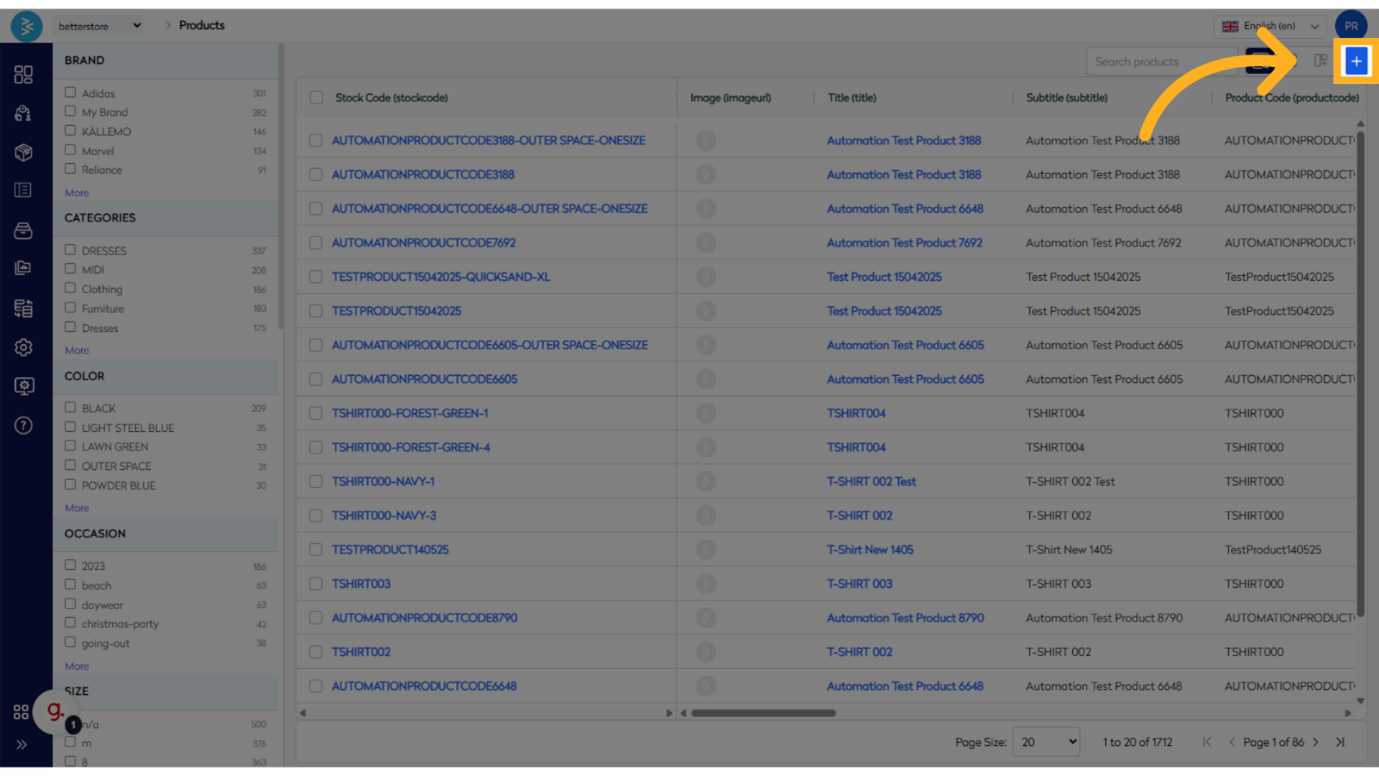
Step 2: Click + sign to add new product
Step 3: Click "Select Category"
Choose a category from the list.

Enter Product Information
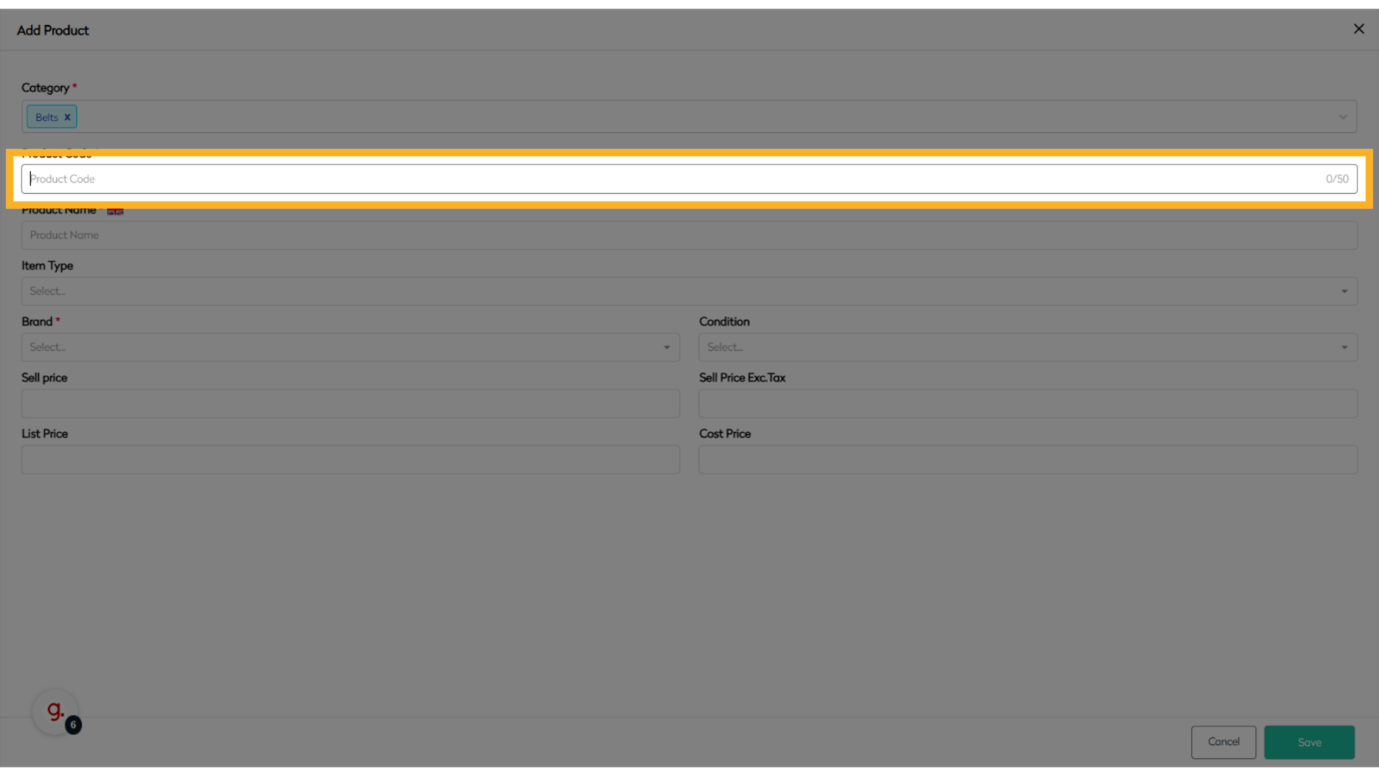
Step 4: Click "Product Code *"
Enter the product code.
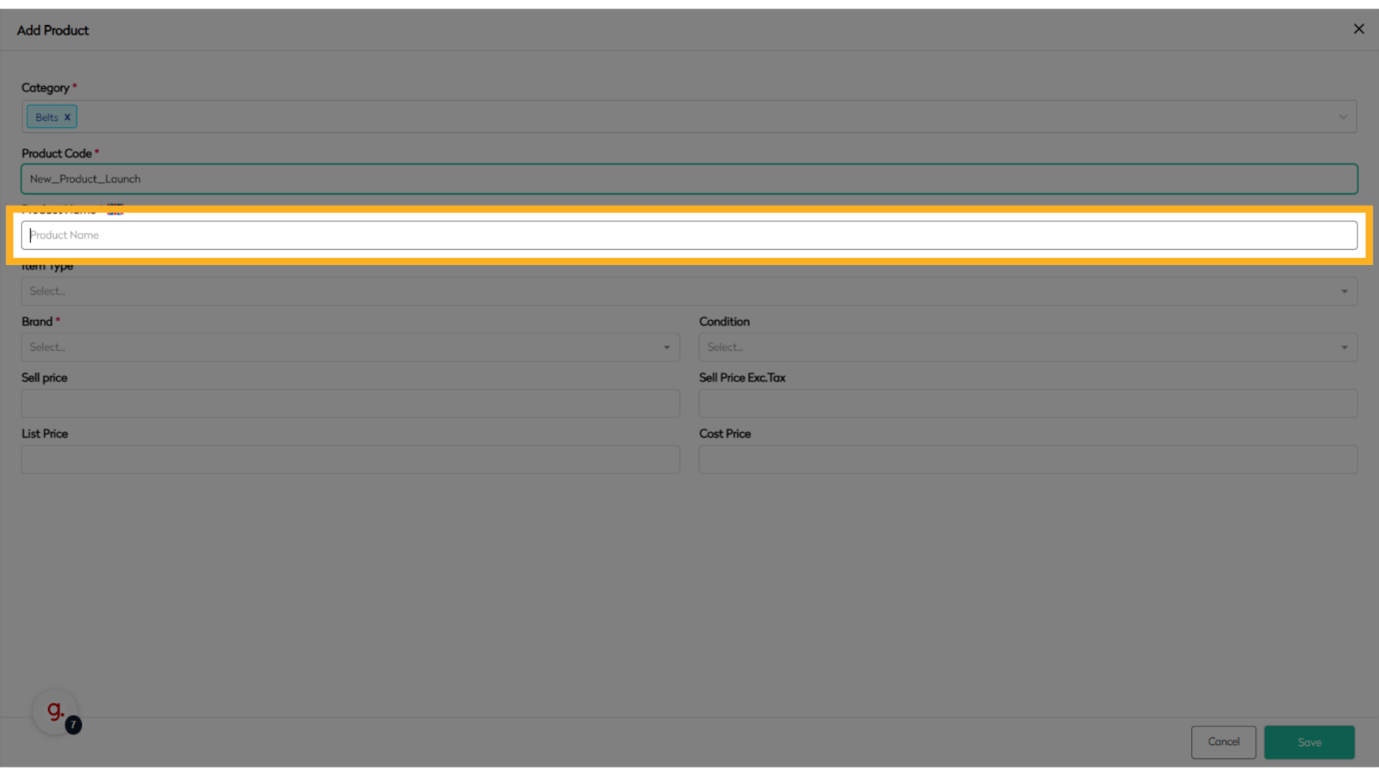
Step 5: Click "Product Name *"
Enter the product name.
Define Product Type and Brand
Step 6: Click "Item Type"
Select the product type.
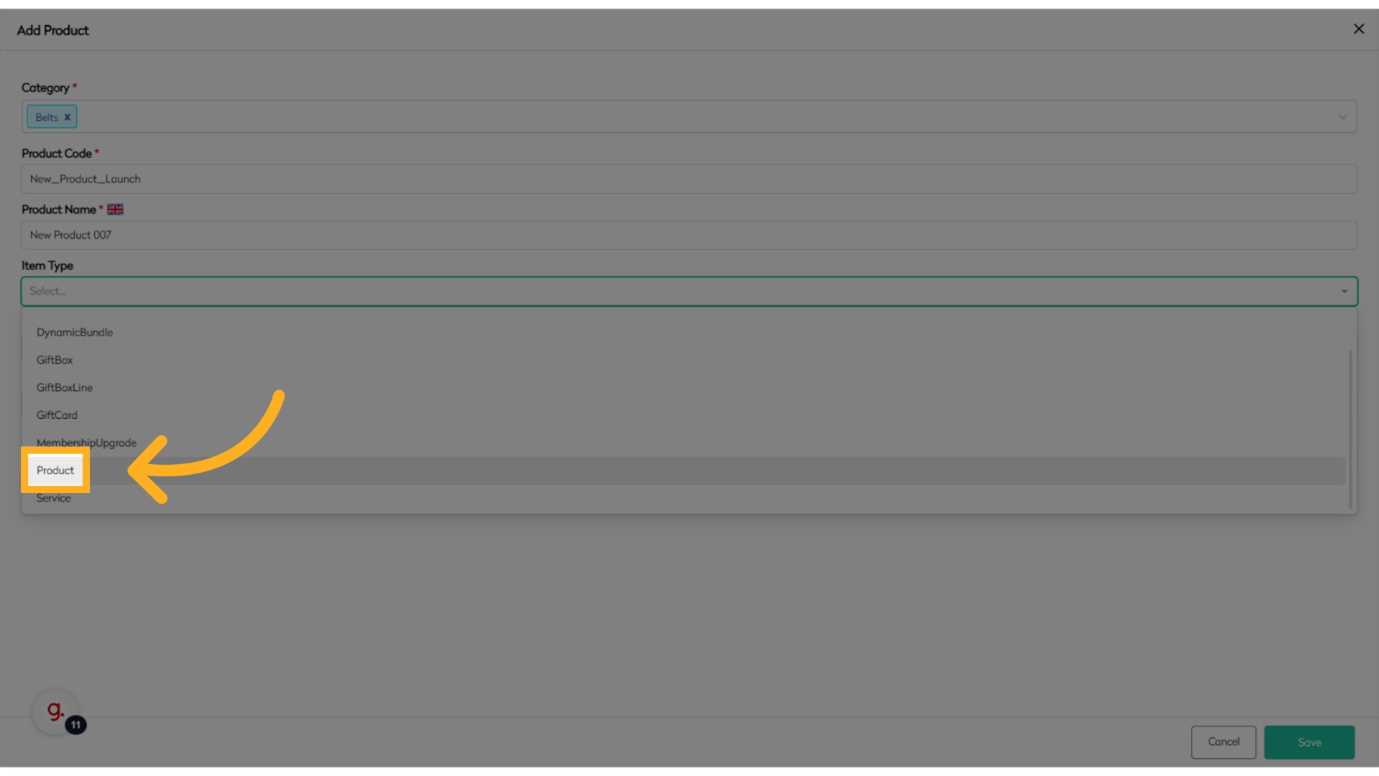
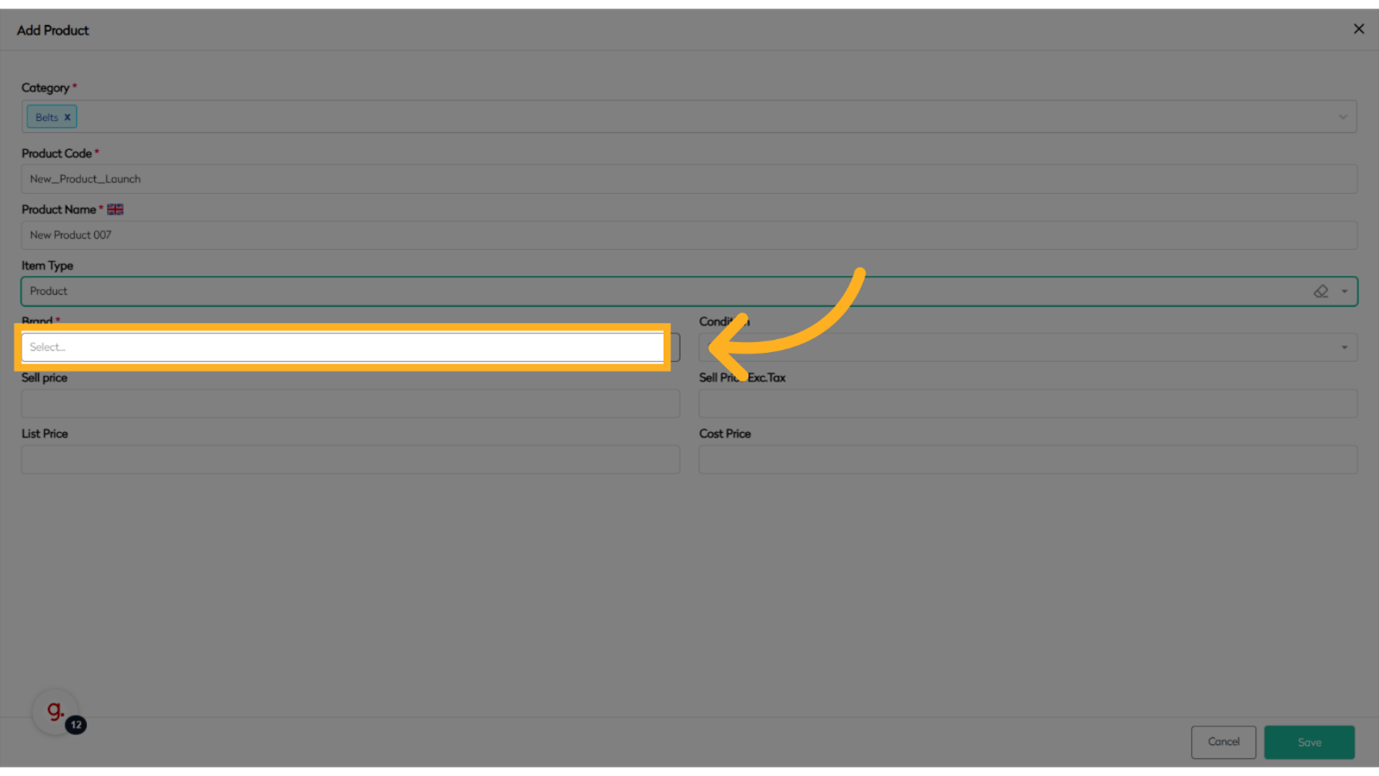
Step 7: Click here to select Brand
Proceed to the next step.
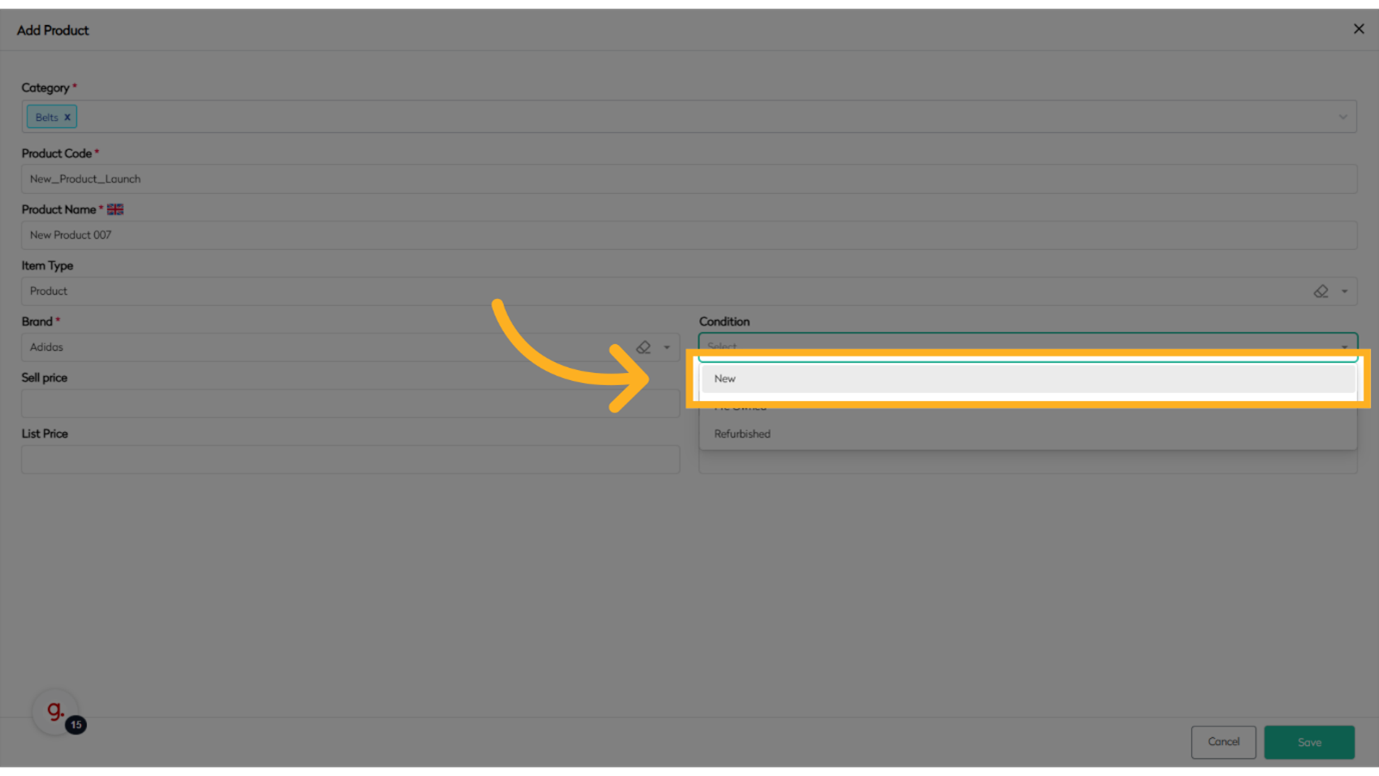
Step 8: Click here to select condition
Proceed to the next step.
Finalize and Save Product
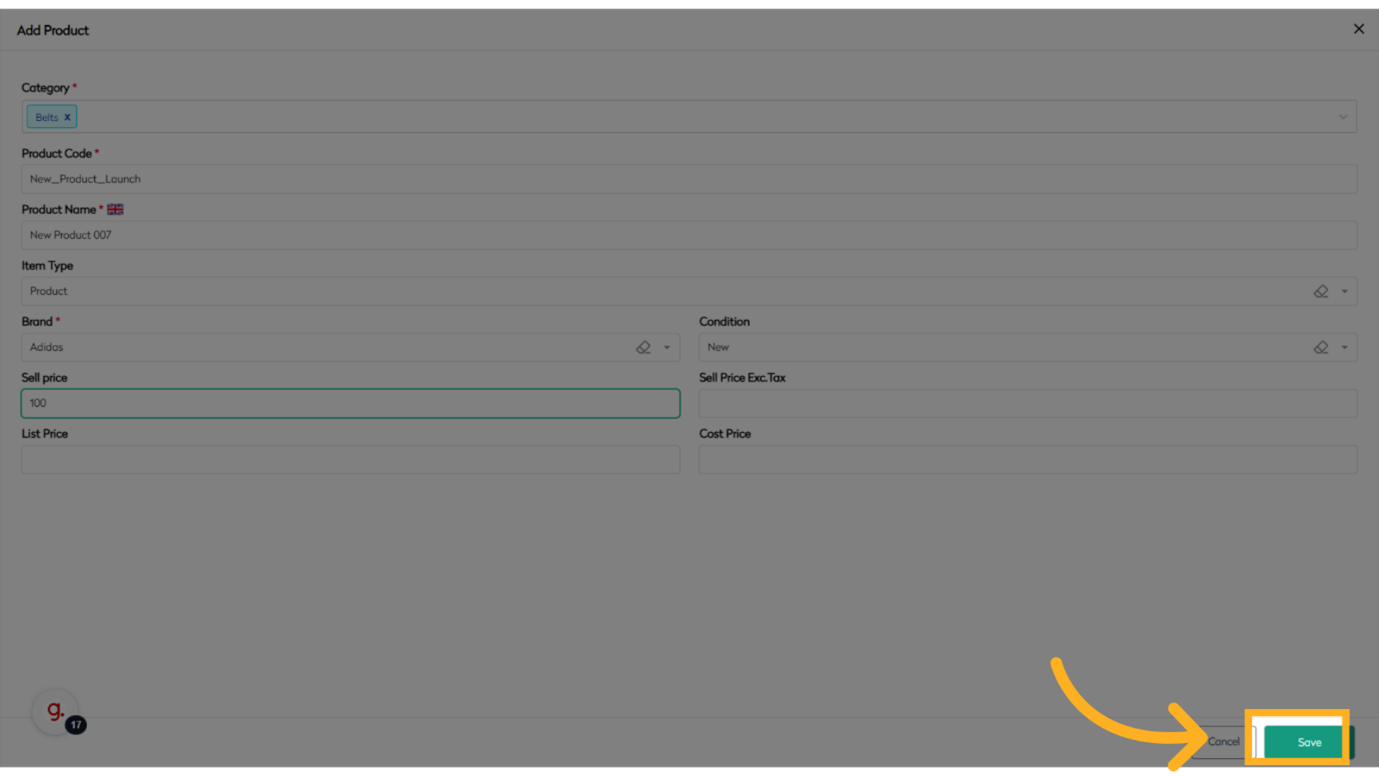
Step 9: Click "Sell price"
Enter the selling price.

Step 10: Click "Save"
Save the product information.
Summary
This guide covered the process of adding a new product in Bettercommerce from selecting categories, entering product information, to saving the new product entry. Master the steps to efficiently add products to your inventory.